Three Prompts, Three Results: A Practical Guide to Freeform Image Generation
Content type presets handle the common cases. But when you need something custom, freeform prompts give you full creative control. Here's how to write them well.
The preset content types — Product Photo, Announcement, Quote Card — cover the visuals most teams need every week. But sometimes you need an image that doesn’t fit any template. A hero for a blog post. An abstract texture for a landing page. A creative illustration that exists only in your head.
That’s what the General preset is for. No structured fields. Just a text box and whatever you can describe.
The difference between a usable image and a wasted generation comes down to how you write the prompt. Here are three real examples — each prompt is shown exactly as typed, and each image is the actual result.
Example 1: Blog Hero Image
You’re writing a blog post about the future of remote work and need a header image. Here’s the prompt:
An aerial view of a modern co-working space with people working at laptops, warm natural light streaming through floor-to-ceiling windows, lush green plants throughout, minimalist Scandinavian furniture in light oak and white. Professional editorial photography style, shallow depth of field, warm golden-hour color grading.

What makes this work:
- Subject first: “aerial view of a modern co-working space” — the AI knows what to build before anything else
- Specific details: “floor-to-ceiling windows,” “light oak and white,” “lush green plants” — each detail steers the output away from generic results
- Photography direction: “editorial photography style, shallow depth of field, warm golden-hour color grading” — this is the difference between “a photo of an office” and a photo that looks like it belongs in Architectural Digest
Example 2: Abstract Brand Background
Your landing page needs a premium-feeling background texture. Stock photos look generic. Custom photography is overkill for a background. Here’s the prompt:
Abstract flowing silk fabric in soft gradients of dusty rose and champagne gold, floating weightlessly against a deep navy background. Macro photography perspective, dramatic studio lighting creating rich highlights and deep shadows on the folds. Luxurious, high-fashion editorial quality.
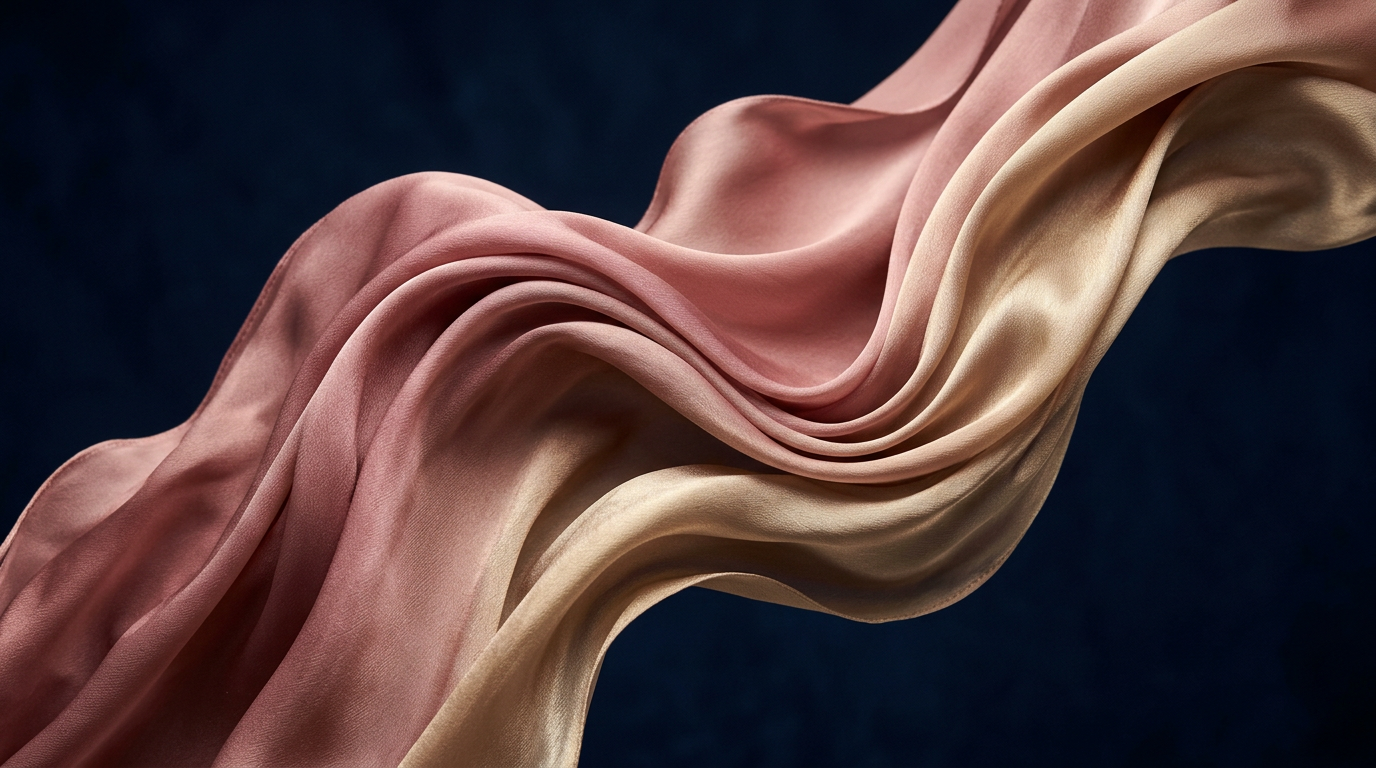
What makes this work:
- Material, not concept: describing “flowing silk fabric” gives the AI something physical to render, which produces more convincing textures than abstract requests like “make something elegant”
- Color precision: “dusty rose and champagne gold against deep navy” — three specific colors, not “warm colors” or “elegant palette”
- Camera language: “macro photography perspective, dramatic studio lighting” — telling the AI how to photograph the subject, not just what the subject is
- Mood anchor: “luxurious, high-fashion editorial quality” — sets the bar for refinement
Example 3: Creative Concept
You need a social media image that stops the scroll — something clever, unexpected, and shareable. Here’s the prompt:
A tiny astronaut sitting on the edge of a coffee cup, legs dangling over the rim, looking up at a swirling galaxy of cream in the dark coffee below. Warm kitchen morning light from a nearby window. Photorealistic detail at miniature scale. Whimsical, imaginative, cozy atmosphere. Shallow depth of field with the astronaut in sharp focus.
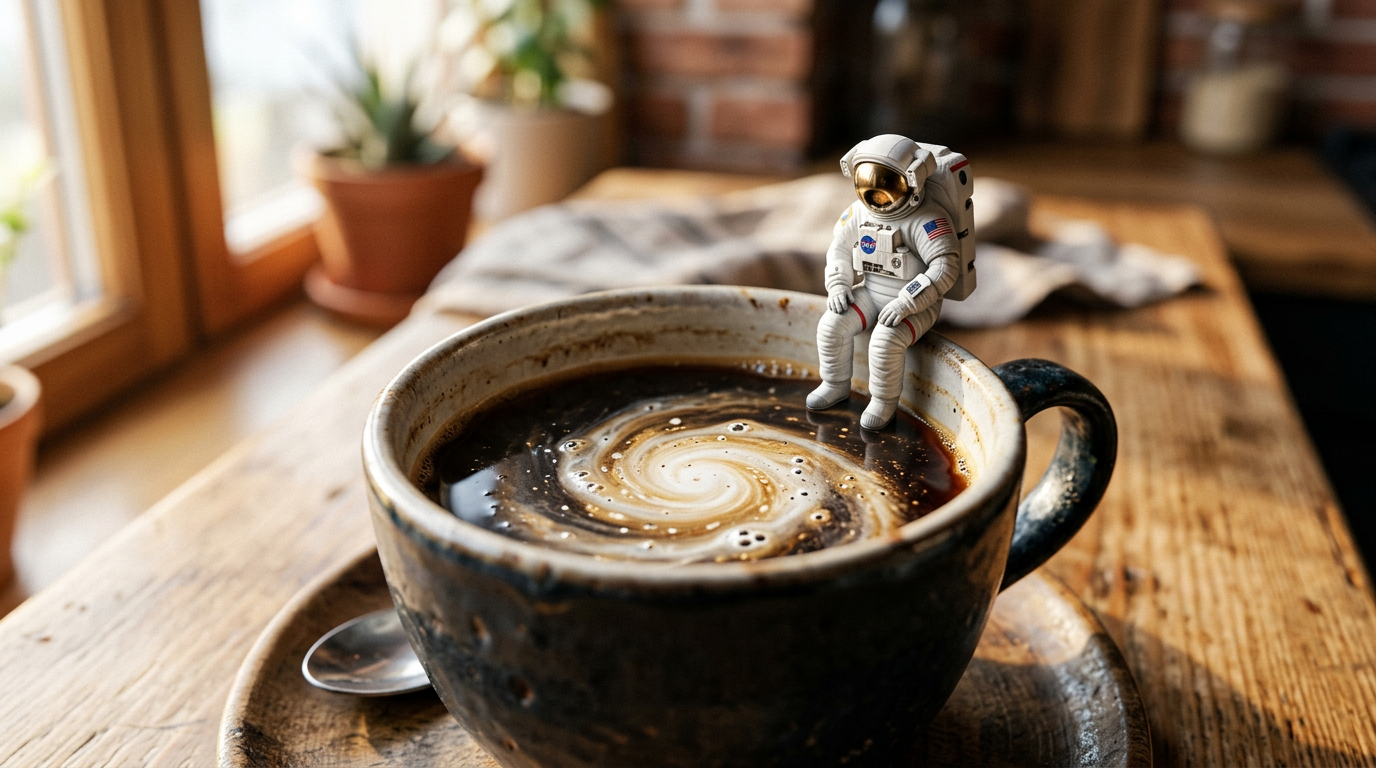
What makes this work:
- Surreal concept, concrete details: “tiny astronaut sitting on the edge of a coffee cup, legs dangling” — the concept is fantastical but the physical description is precise enough for the AI to compose
- Scale anchoring: “miniature scale” and “on the edge of a coffee cup” tell the AI exactly how large the astronaut is relative to the environment
- Emotional direction: “whimsical, imaginative, cozy” — three words that completely change the mood compared to, say, “epic, dramatic, cinematic”
- Focus control: “shallow depth of field with the astronaut in sharp focus” — directs attention to the subject
The Prompt Structure
Every effective prompt follows the same pattern, whether you realize it or not:
- Subject — what is in the image (a co-working space, silk fabric, a tiny astronaut)
- Details — specific visual elements that prevent generic results (Scandinavian furniture, dusty rose gradients, legs dangling over the rim)
- Camera / Style — how it’s photographed or rendered (editorial photography, macro perspective, shallow depth of field)
- Mood — the emotional quality (warm, luxurious, whimsical)
Skip any layer and the AI fills in the gaps with its defaults. Sometimes that’s fine. Usually it produces something generic.
Common Mistakes
Too vague: “A nice office” — the AI has no idea what “nice” means to you.
Too long: A 500-word prompt isn’t better than a 50-word one. Every word should add a specific visual instruction. If a sentence doesn’t change the image, cut it.
Style-blind: Forgetting to specify the visual style is the most common mistake. “A coffee cup on a desk” could be a photo, a watercolor, a 3D render, or a pencil sketch. Say which one.
Mood-blind: “A forest” and “a quiet forest at dawn with mist between the birch trees” produce wildly different results. Mood words (cozy, dramatic, serene, eerie) are cheap and powerful.
When to Use Freeform vs. Templates
Reach for the General preset when:
- Your image doesn’t fit any existing content type
- You need a one-off creative composition
- You want to experiment with artistic styles
- You’re creating abstract or conceptual visuals
Stick with templates when:
- You’re making a stat graphic, quote card, or announcement (the template knows the format)
- You want consistent quality across a team (fields prevent vague prompts)
- You’re generating images for a brand with strict guidelines (templates enforce brand rules)
Start Creating
The General preset is your creative sandbox. No templates, no constraints — just your imagination and a text box.
Open the Playground and try one of the prompts above. Then write your own.